
In my previous blog, I explored the benefits of transitioning from Google Workspace to Microsoft 365, emphasizing advantages like enhanced growth potential, top notch security, great management tools, and access to desktop applications. As we now embark on our migration journey, it’s essential to first understand the service mapping between Google and Microsoft. This foundational step will pave the way for a smooth and efficient transition, ensuring our migration strategy is well-informed and effective.
Below is mapping of Google vs Microsoft.
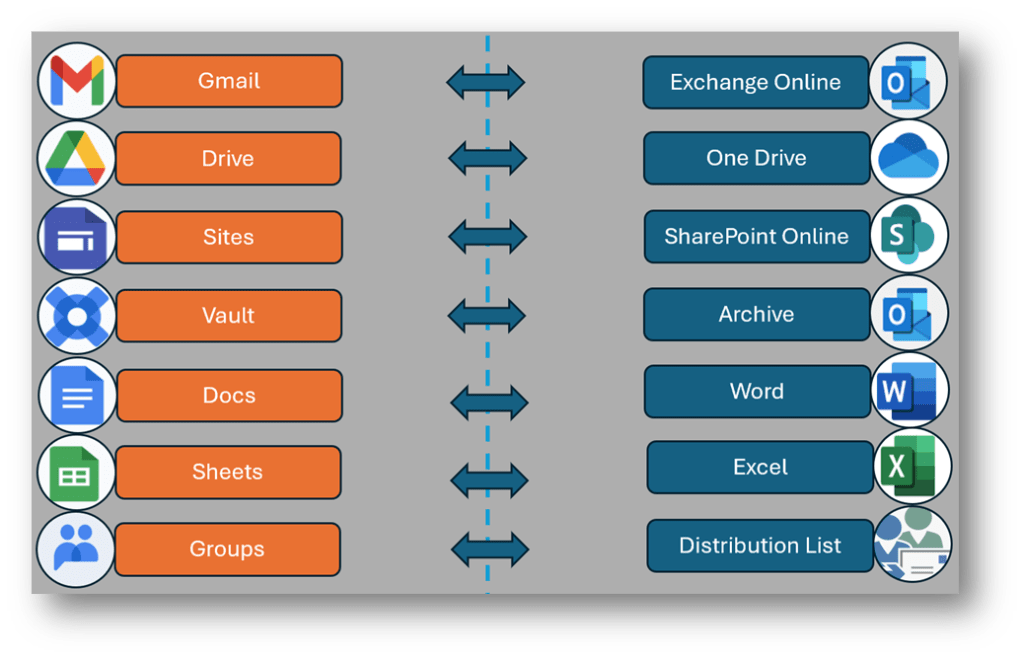
In this blog post, we’ll dive into the process of migrating Gmail to Exchange Online, followed by transitioning Drive, including Docs and Sheets.
When it comes to migrating emails from Google Workspace to Microsoft 365, there are several methods available. One option is using IMAP migration, which, while effective, can be tedious and only transfers emails, leaving out calendars, contacts, tasks, rules, and other mailbox information. Alternatively, third-party tools offer more flexibility and advanced features, but they often come with per-user licensing costs and lack support from Microsoft. The preferred method is using the native Google Workspace migration tool, which provides a comprehensive and supported way to transition from Google to Microsoft 365.
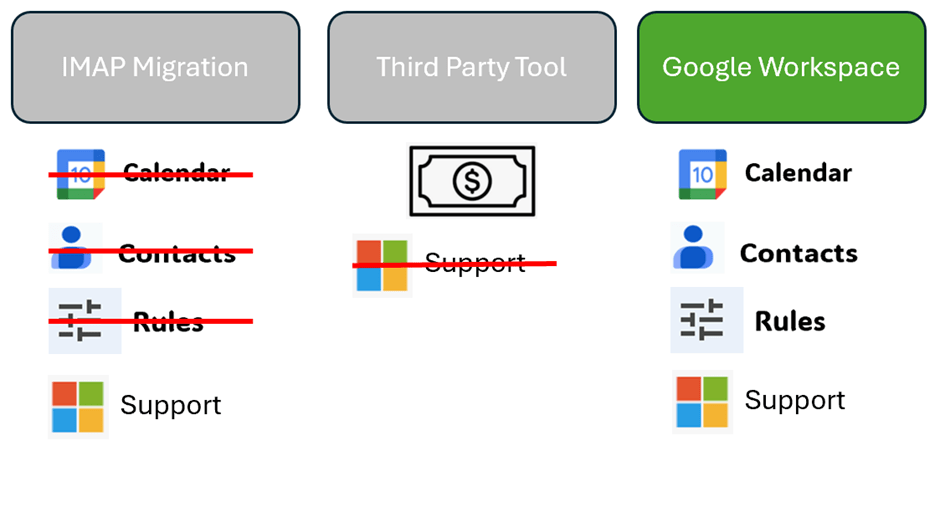
You can seamlessly transfer your emails, rules, calendar, and contacts from Google Workspace to Microsoft 365. Utilizing Microsoft’s native migration tool ensures a smooth transition, with the added benefit of comprehensive break-fix support from Microsoft in case any issues arise or other support options like FastTrack, Advisory etc.
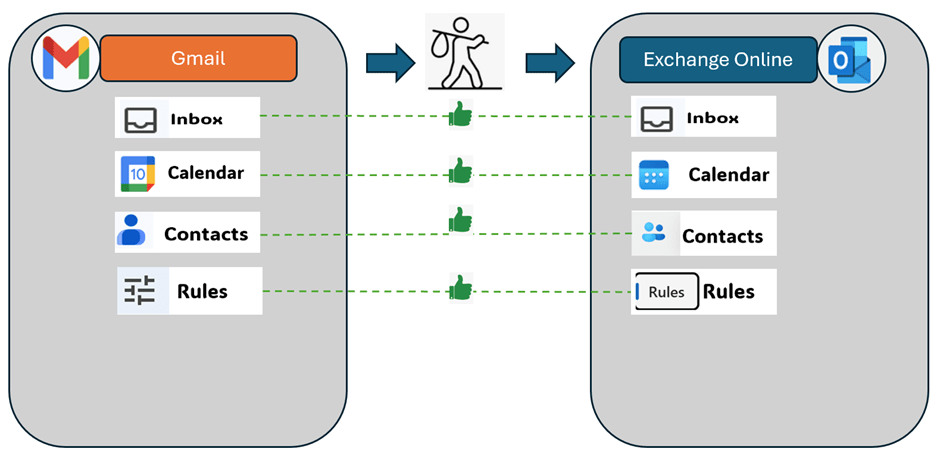
The migration process has three main steps.
- Pre-Migration setup. Pre-requisite check.
- Initiating the Migration.
- Completing the Migration.
Key Points to Consider Before Migration:
Email Size Limit: The maximum size for migrating emails is determined by the organization’s transport configuration. The standard limit is 35 MB, but it can be increased to 150 GB.
Google Workspace Migration Exclusion: Migration services are not available for Office 365 US Government GCC High and DoD accounts.
Data Loss Prevention: There’s a risk of losing data for emails that are deleted or archived by MRM policies. However, this can be prevented.
Throttling: Throttling may occur due to quota restrictions on the tenant’s service account within Google Workspace. Throttling is controlled by Google, as it pertains to the Google API usage limits. If throttling issues arise, contacting Google support for assistance may be necessary. For detailed limits, visit the Google API limits documentation.
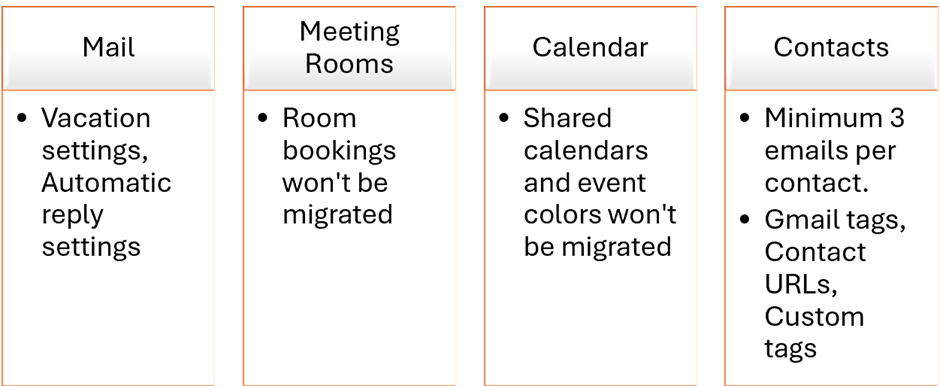
Few other limitations are mentioned below.
There are three methods to migrate using Google workspace.
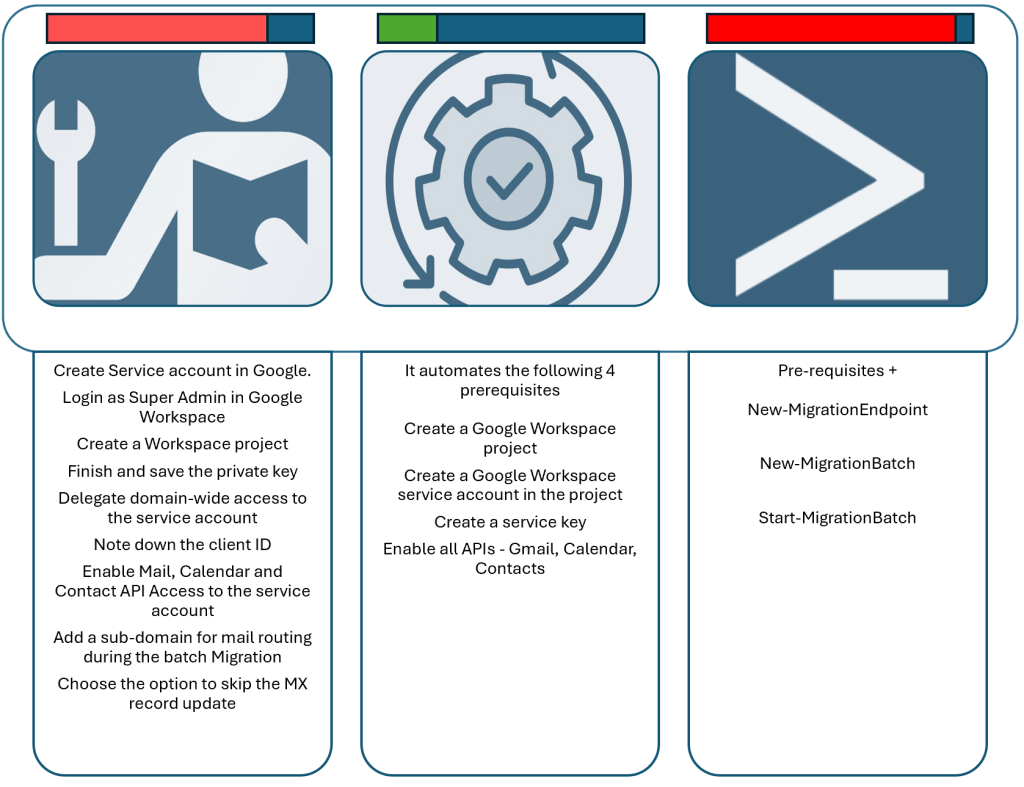
Manually
Embarking on a hands-on migration strategy from Google Workspace to Microsoft 365 is a multifaceted and intricate process that provides the granular control some organizations seek. This method involves direct participation at every phase, ensuring that any issues encountered during the migration can be swiftly addressed.
The manual migration process is particularly suited for enterprises with specific requirements, especially those managing a large number of Google Workspace users. This approach allows for meticulous oversight and involvement at each step, from initial planning and data assessment to the actual transfer and post-migration support.
However, the manual migration route, while offering significant control, is inherently time-consuming and complex. It demands a considerable investment of time and resources, and the potential for errors or network disruptions is higher. Each stage must be carefully managed to mitigate risks and ensure a smooth transition, making it a lengthy and detailed endeavour.
Automatic
Automated migration tools offer a superior alternative to manual migration when transitioning from Google Workspace to Microsoft 365. These tools facilitate the migration process with minimal interruptions, ensuring a smooth and efficient transition. By leveraging automated solutions, organizations can significantly reduce the risk of human error, expedite processing times, and simplify the overall migration with minimal oversight and intervention.
The use of automated migration tools streamlines the process, making it more efficient and less prone to errors. This approach is particularly advantageous for organizations seeking a hassle-free migration experience, as it requires less manual involvement and oversight.
However, while automated migration tools provide a streamlined and efficient process, they may not be suitable for organizations with highly complex infrastructures or specific needs that require manual intervention. In such cases, a hybrid approach that combines automated tools with manual oversight may be the best solution to ensure all requirements are met.
PowerShell
Another method for migration involves utilizing PowerShell, a powerful scripting language that demands a high level of technical proficiency. This approach is particularly well-suited for organizations with a substantial number of mailboxes to migrate or those with intricate and complex setups.
Implementing a PowerShell-based migration requires detailed scripting skills and a deep understanding of both the source and target environments. The process involves writing and executing custom scripts to manage the migration, which can handle large volumes of data and accommodate specific organizational needs. This method allows for fine-tuned control over the migration process, but it also introduces a layer of complexity that necessitates careful planning and execution.
Due to its complexity, a PowerShell migration strategy is best managed by experienced IT professionals who can navigate the potential challenges and ensure a smooth transition. This method, while powerful and flexible, underscores the need for meticulous attention to detail and robust technical expertise.
And there you have it, the grand migration saga begins! I’m off to juggle with the pre-requisites, which is just a fancy way of saying I’ll be buried under a pile of checklists and configurations. But fear not, dear readers, for I shall return, like a tech-savvy phoenix rising from the ashes of admin panels and user manuals. Stay tuned for the thrilling first act of our trilogy: ‘Pre-Migration Setup and the Quest for the Holy Checkmarks.’


Leave a comment