
Support for Microsoft managed storage for evidence collection is now in public preview for endpoint DLP. Please check the YouTube video for more information
.
Current option
Currently Microsoft Purview Endpoint DLP provides an option to collect the evidence for policy violations to a customer managed blob storage account.
While this may be ideal for most of the organizations, there has been a need for a Microsoft managed solution for evidence collection.
For customer managed solutions the organizations have to build up strategies for evidence collection as they need to provision the storage accounts, containers and add permissions for the admins to view and manage the evidence and the users to be able to upload the evidence to the blob storage from their devices.

Below permissions are needed for customer managed storage.
- One for the administrators and investigators so they can view and manage evidence.
- One for users who need to upload items to Azure from their devices.
Permissions for the admins or the investigators.

Permissions on Azure blob for users.

To comply with regulatory requirements, organizations must ensure that the Azure storage accounts they use are within the same geopolitical or regulatory boundaries as the devices from which data is being copied. Additionally, they should consider the geopolitical location of the DLP investigators who will access the sensitive items once they are stored.
Access issues due to misconfigured permissions or data residency limitation with 10 Azure storage accounts limit have been a common worry for the organizations.
Microsoft managed storage for eDLP evidence collection

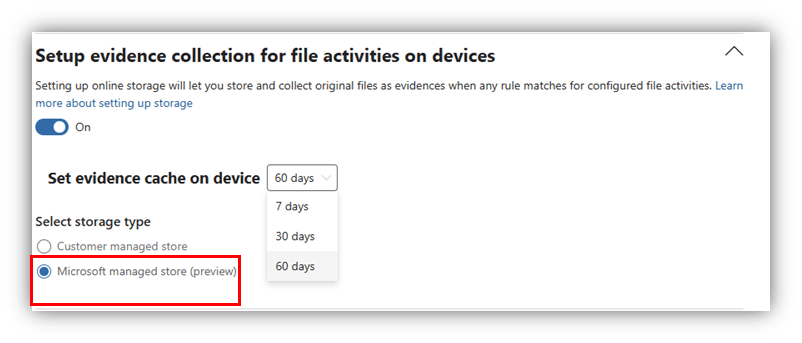
With this capability, Admins can choose to store a copy of the file that resulted in a DLP policy match. The admin uses this data to analyse the contents to confirm the full set of data that was exfiltrated to assess severity. To configure Microsoft managed storage, similar to customer managed storage, the user can go to endpoint DLP settings and select Microsoft managed storage. As compared to customer managed storage, the admin need not configure any additional settings like adding a blob, assigning permissions, or selecting storage in policy workflow.
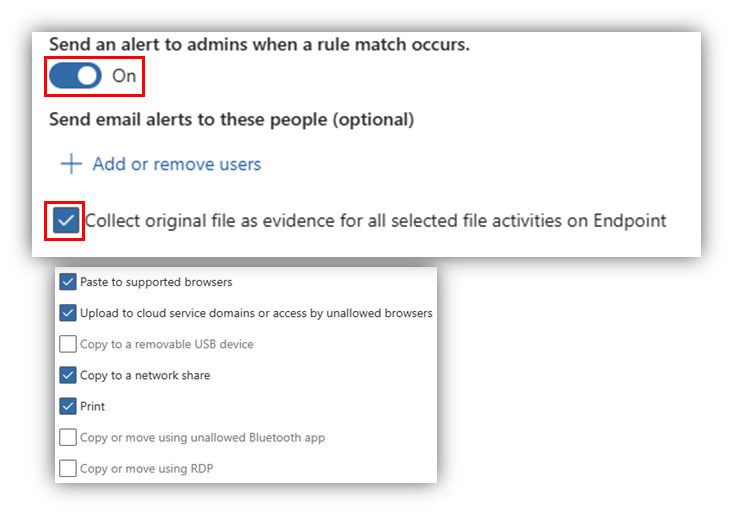
Activities supported for evidence collection
• Paste to supported browsers
• Upload to cloud service domains or access unallowed browsers
• Copy to a removable USB device
• Copy to a network share
• Copy or move using an unallowed Bluetooth app Copy or move using RDP
Steps to configure
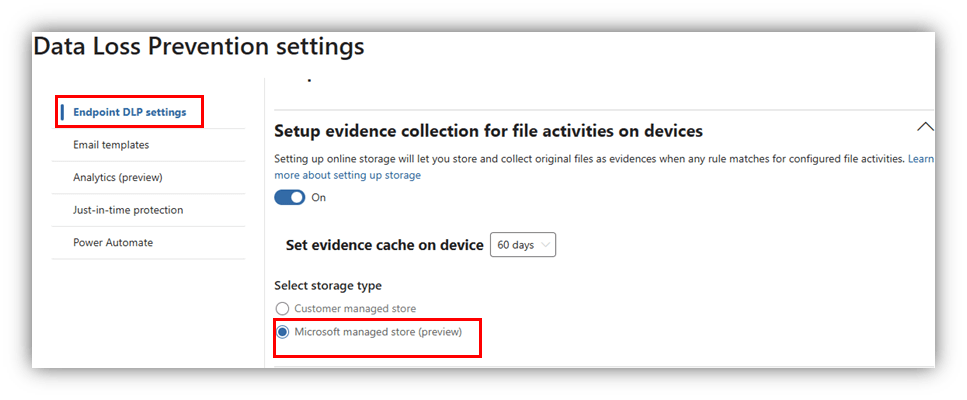
Enable evidence collection on a storage account managed by Microsoft from goabal eDLP settings.
• Sign in to the Microsoft Purview portal > Settings gear in the menu bar.
• Choose Data Loss Prevention.
• Select Endpoint DLP settings.
• Expand Setup evidence collection for file activities on devices and set the toggle to On.
• Under Select storage type, choose Microsoft managed storage.
Configure DLP policy
• In the DLP rule for the policy, toggle on “send an alert to admins when a rule match occurs”
• Select Collect original file as evidence for all selected file activities on Endpoint and select the activities.
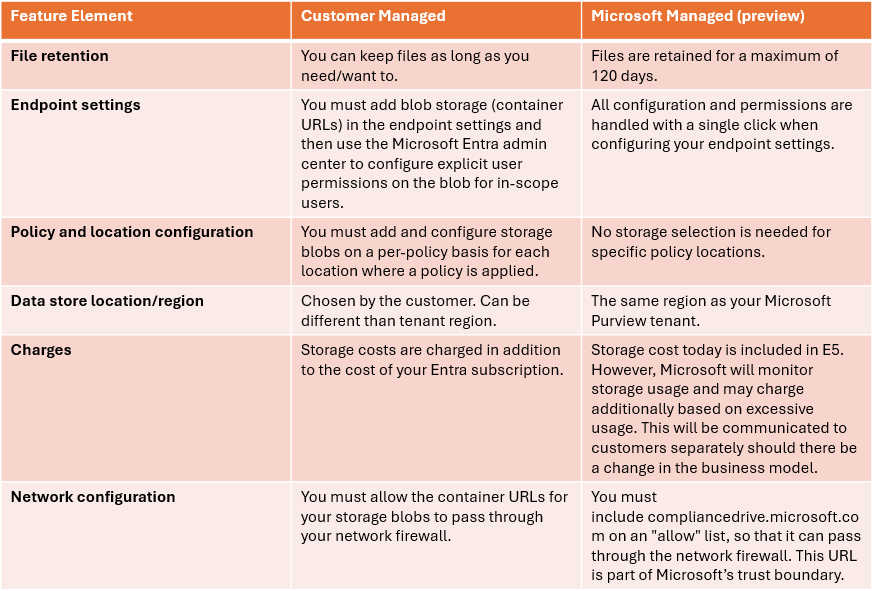
Customer Managed vs Microsoft Managed
Switching from Customer managed to Microsoft Managed.
• Files that match the criteria will still show up in alert results even if the storage management type is changed, provided the role-based access control (RBAC) permissions remain unchanged.
• Because you manage your own storage solution, your DLP administrators can continue to download files individually even after they have been transferred to the Microsoft-managed storage solution.
• Once you switch from the customer managed to Microsoft managed then your previous blob storage URL entries get deleted from the eDLP settings. You will have to refresh the policy once you change the storage type
Known issues
•Files stored in the device cache are not retained if the system crashes or restarts.
• The maximum file size for uploads from a device is 500 MB.
• If Just-in-Time Protection is activated on a scanned file, or if the file is stored on a network share, the evidence file is not collected.
• When multiple files are opened in the same process (non-office applications) and one of the files matches a policy and is egressed, DLP events are triggered for all files, but no evidence is captured.
• If multiple policy rules are detected in a single file, the evidence file is only stored if the most restrictive policy rule is set to collect evidence.
• The copies are not saved in the changeless state so they do not qualify as a true evidence in legal sense. For legal requirements you must use Purview eDiscovery solutions.
Evidence collection
• When an item and the action a user performs on it meet the criteria set by a DLP policy, an event called DLPRuleMatch appears in the Activity explorer.
• The admins must have Data classification content viewer role on purview permissions to be able to preview and download the file.
• DLPRuleMatch event contains only a limited amount of text that surrounds the matched content called contextual summary and shows up for every location that DLP supports.
• The evidence collection for file is only available for windows devices and it saves a copy of the entire item that matched the policy.

That’s it! please refer the YouTube video and feel free to add your questions if any and I will be more than happy to answer.
Thank You!
 Bite sized Microsoft 365
Leave a comment