
In my previous blog post, we delved into the various methods available for migrating from Google Workspace to Microsoft 365. Whether you’re a tech enthusiast or a business leader, understanding these methods is crucial for a smooth transition.
Today, we’re taking a step further. We’ll explore the essential prerequisites for migrating from Google Workspace to Microsoft 365 using the automated method. This approach simplifies the overall migration process.
So, get ready as we embark on this journey to make your migration experience as seamless as possible. From setting up the necessary permissions to understanding the key steps involved, this blog will guide you through every aspect of the automated migration process. Let’s dive in and unlock the potential of Microsoft 365 together!
The end goal is to switchover from Google workspace to Microsoft 365.
Before embarking on the migration journey, it’s crucial to understand the necessary prerequisites. Given that Google Workspace migration can be a staged process, ensuring uninterrupted MailFlow during the transition is essential. Regardless of the migration method you choose, the following prerequisites must be met:
- Verify the Primary Domain in Microsoft 365: Ensure that your primary domain is verified in Microsoft 365 to establish a secure and recognized environment for your data.
- Create a Subdomain for Mail Routing to Microsoft 365: Set up a subdomain specifically for routing mail to Microsoft 365 to facilitate smooth email delivery.
- Create a Subdomain for Mail Routing to Your Google Workspace Domain: Similarly, create a subdomain for routing mail back to your Google Workspace domain to maintain seamless communication during the migration.
- Provision Mail Users in Microsoft 365 or Microsoft 365: Ensure that all mail users are provisioned in Microsoft 365 or Microsoft 365 to enable a smooth transition and uninterrupted access to email services.
By adhering to these prerequisites, you can ensure a streamlined and efficient migration process, minimizing disruptions and maintaining productivity.
I will cover every pre-requisite mentioned above and explain why we have to have this setup before we kick in the workspace migration to Microsoft 365.
Here are the steps I will follow:
- Verify the domain Sonyladhe.co.in in Microsoft 365: We will not change the MX record to Microsoft 365 since some users are still using Google.
- Add a subdomain in Microsoft 365: Create O365.Sonyladhe.co.in with the MX record pointing to Microsoft 365.
- Add an alias subdomain in Google Workspace: Create Gsuite.Sonyladhe.co.in with the MX record pointing to Google Workspace to forward emails from O365 to Google during the migration.
- Add another alias subdomain in Google Workspace: Create O365.Sonyladhe.co.in with the MX record pointing to Microsoft 365.
- Assign roles to my Google Administrator account: Grant Projector Creator and Service Accounts Creator roles.
- Provision mail users in Microsoft 365: Specify the external email address with the subdomain Gsuite.onmicrosoft.com and add the alias O365.Sonyladhe.co.in.
Summary of the configuration

Before we start configuring the Pre-requisites let’s see how the MailFlow will
function before, during and after the migration.
Here is the current state.
All the users currently have their mailboxes in Google Workspace and the MX record for the domain Sonyladhe.co.in is pointing to Gmail.
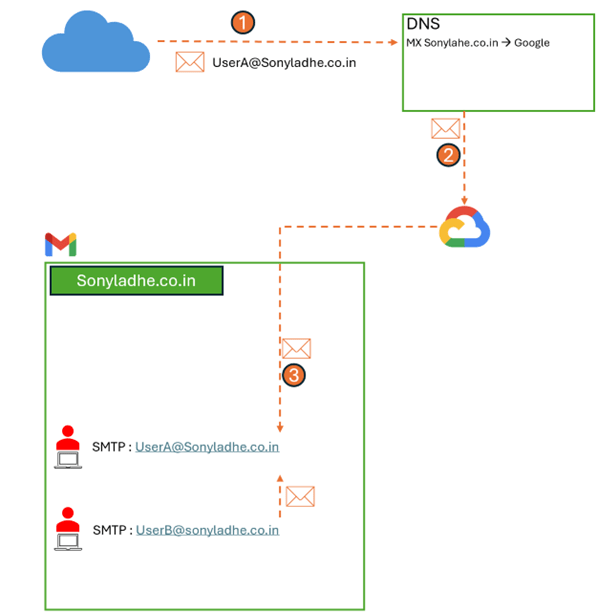
- Email addressed for the user with the domain Sonyladhe.co.in will check the MX record in the DNS.
- The email will be redirected to Google as the MX is pointing to Google.
- Google will deliver the email to the mailbox hosted in Google.
Next, we need to initiate the migration. The MX record will remain with Google, ensuring that all emails for the domain Sonyladhe.co.in continue to be directed to Google.
I will begin by verifying the domain Sonyladhe.co.in in Microsoft 365, followed by adding the subdomain O365.sonyladhe.co.in. Then, I will provision the MailUsers intended for migration with the external email address gsuite.sonyladhe.co.in. This setup ensures that all emails continue to be sent to the Google mailboxes, as users will still be using their Google Workspace accounts. After these steps, the setup will look like the diagram below.
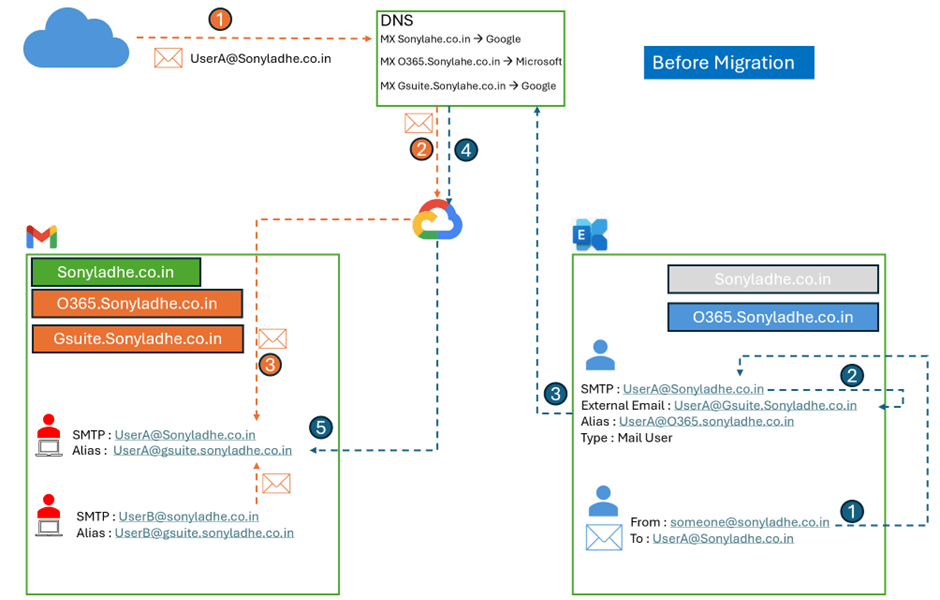
- If someone within Microsoft 365 sends an email to the MailUser, it will be forwarded to Google Workspace using the external email address with the Gsuite.Sonyladhe.co.in domain.
- Since the MX record for Gsuite.Sonyladhe.co.in is already pointed to Google, the email will be delivered to the mailbox in Google Workspace.
The previous phase was before starting the migration. Once you initiate the migration in Microsoft 365, the MailUser is converted to a mailbox in Microsoft 365. The setup during the migration will look like the diagram below.

- The MailUser will be converted to a mailbox as part of the migration provisioning process.
- The external email address will be added as a forwarding SMTP address.
- While the mailbox is still being migrated, the user will continue to access their email through Google Workspace.
- Any email from previously migrated users or other Microsoft 365 users will be sent to Google Workspace using the forwarding SMTP address.
- The sync process during the migration will continue synchronizing emails received in Google Workspace to Microsoft 365.
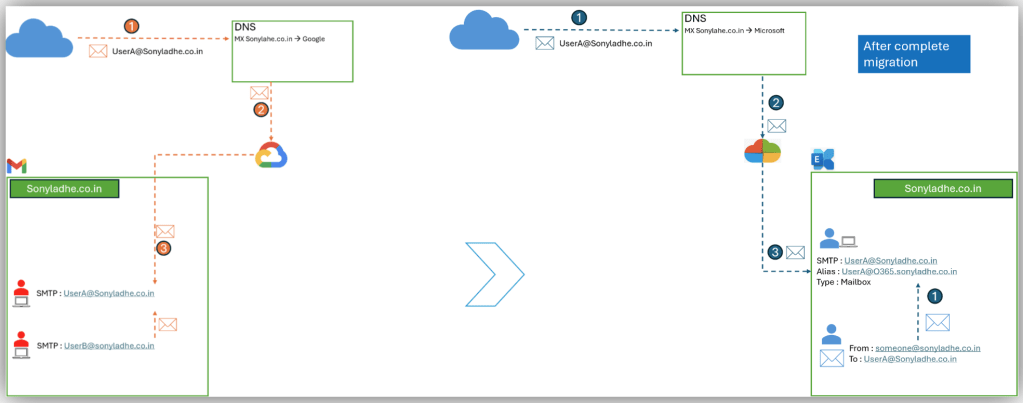
The previous phase involves starting the migration batch and including the user. Once the migration is complete, the user will begin using the mailbox in Microsoft 365. The setup will then look like the diagram below.

- After completing the migration batch, the following changes will occur: the forwarding SMTP address in Microsoft 365 will be removed, and forwarding will be set up in the Google Workspace account with the subdomain O365.Sonyladhe.co.in.
- Since the mailbox is now migrated, the user will start using the mailbox in Microsoft 365. As the MX record is still pointed to Google Workspace (due to remaining users yet to be migrated), emails will be forwarded to Microsoft 365 using the forwarding address in Google Workspace.
This is the final phase of migrating a specific batch. Once all users are migrated, I will switch the MX record to Microsoft 365. Consequently, all emails will start arriving directly in Microsoft 365, and the setup will look like the diagram below.

Now that we have a clear understanding of how the MailFlow will work before, during, and after the migration, we can proceed with configuring the prerequisites. I believe that understanding the setup at various stages first will help us better comprehend the prerequisites.
Here are the tasks I need to complete in Google:
- Verify the subdomain Gsuite.Sonyladhe.co.in and point the MX record to Google.
- Verify the subdomain O365.Sonyladhe.co.in without pointing the MX record to Google.
- Enable the following permissions for the admin accounts: Project Creator, Service Account Creator, and Organization Policy Administrator.
Verify the sub domain Gsuite.Sonyladhe.co.in and point the MX record to Google and verify the subdomain O365.Sonyladhe.co.in and do not point the MX record to Google.
1) Login to https://admin.google.com/ using my admin credentials. Below is the homepage of my Google Admin center.

2) Click on Overview in Domains and then select Manage Domains.

3) I will click on “Add Domain” and select “Add Alias Domain” to ensure the alias is automatically added to all users with the new domain. I will add Gsuite.Sonyladhe.co.in and activate Gmail, which means pointing the MX record to Google. Additionally, I will add O365.Sonyladhe.co.in without activating Gmail.

Enable the following permission for the admin accounts Project Creator, Service account Creator and Organization policy administrator.
1) As part of the automatic Migration process, the following configurations are done automatically by the migration process.
- Create Google Workspace Project.
- Create Service Account in the project.
- Create a Service Key.
- Enable API for Gmail, Contact and Calendar.
To proceed, the admin account used for migration must have the following permissions.
- Project Creator
- Service account Creator
- Organization policy administrator (will explain this in a while)
To achieve this, you need to.
- Login to https://console.developers.google.com/
- Expand the Hamburger menu and then select IAM&Admin.
- Click on Manage resource.

4. Select the directory and then click on Add principal

The official documentation does not mention the role of Organization Policy Administrator. However, this role needs to be enabled due to Google’s setup. During the migration process, a JSON file is downloaded to authenticate the service account. By default, Google has an organization policy that blocks the creation of service keys. Therefore, even if all checkboxes are checked while configuring the prerequisites in the Microsoft Exchange admin center, the JSON file will not be downloaded.
To resolve this, you need to set the organization policy “Disable service account key creation” to not enforced and to do so you need Organization policy administrator role assigned.

This completes the prerequisites on Google’s end. Now, we will move on to Microsoft 365 and configure the necessary prerequisites.
Here are the tasks I need to complete in Microsoft:
- Verify the domain Sonyladhe.co.in without adding any DNS records.
- Verify the subdomain O365.Sonyladhe.co.in and point the MX record to O365.
- Create MailUsers that need to be migrated from Google to Microsoft 365.
Verify the domain Sonyladhe.co.in and do not add any DNS records and Verify the subdomain O365.Sonyladhe.co.in and point the MX record to O365.
1) Login to https://admin.microsoft.com/ and navigate to settings and then domain.
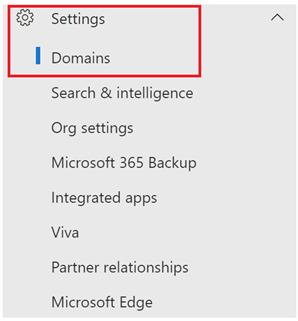
2) Click on Add domain and follow the wizard to add the domain Sonyladhe.co.in (Will not add any DNS records, will just verify the domain)
3) Once the primary domain is verified, the sub domain can be added. Now I will follow the same process and add the sub domain O365.sonyladhe.co.in (I will use the wizard and configure all the required DNS record, primarily the MX record)

Create MailUsers that are supposed to be migrated from Google to Microsoft 365.
1) There are various ways to achieve this. Either you can use Entra connect or export the users from google and import the users in Office 365.
2) We must ensure that every mailbox that we intend to migrate must have a corresponding MailUser in Microsoft 365.

3) I will provision the MailUser Manually, to do so I will navigate to Exchange admin center and go to contacts https://admin.exchange.microsoft.com/#/contacts
4) Click on add MailUser. The setup should look like the one mentioned below. The external email address is UserA@Gsuite.Sonyaldhe.co.in

This completes the pre-requisite setup at both the ends.
In conclusion, the journey of migrating from Google Workspace to Microsoft 365 is akin to navigating a labyrinth of detailed prerequisite checks, intricate setup configurations, and various stages of mail flow. Each step, from verifying domains and subdomains to configuring forwarding addresses and syncing emails, is crucial. It’s a lengthy process, but every tiny detail matters. A single misconfiguration can lead to a cascade of errors, turning your smooth migration into a chaotic email disaster. Imagine your emails playing hide and seek in the digital realm – not fun, right? So, while it may seem like a Herculean task, remember that these meticulous steps ensure a seamless transition. Embrace the complexity, and you’ll emerge victorious, with all your emails happily settled in their new Microsoft 365 home. Happy migrating!
 Bite sized Microsoft 365
Leave a comment